Cut an MP3 to the part you want
Open an MP3 or another audio file, drag the handles on the waveform and save the part you want as an MP3. Your file stays on your device.
or drop it here
MP3, M4A or WAV · up to 60 min
Editing video on your phone?
The ClipSizer app for Android is on its way.
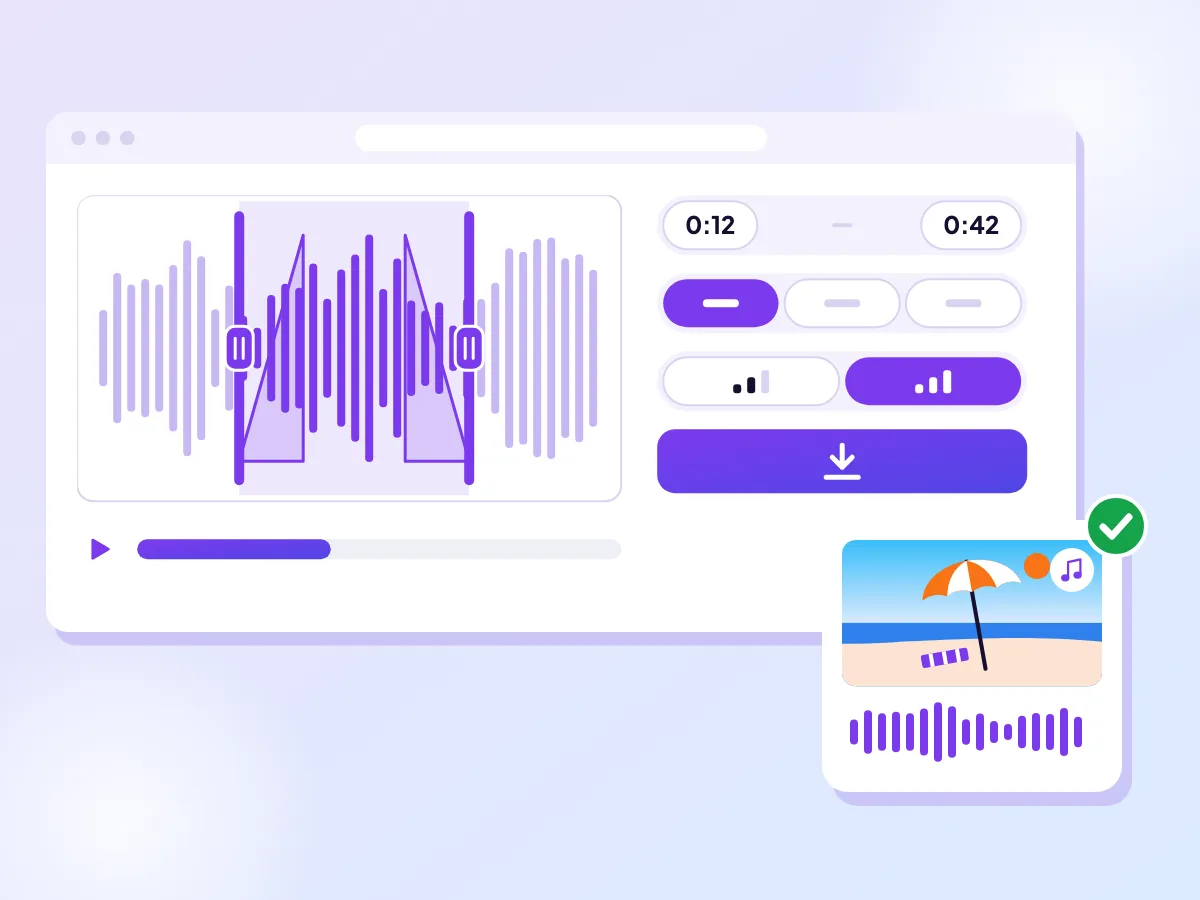
Handles on the waveform, times to the tenth
MP3 is already picked. Drag the two handles to the stretch you need (or type the Start time and End time), add a fade at either end and save at 128 or 192 kbps. Want the sound of a video instead? Use Video to MP3.
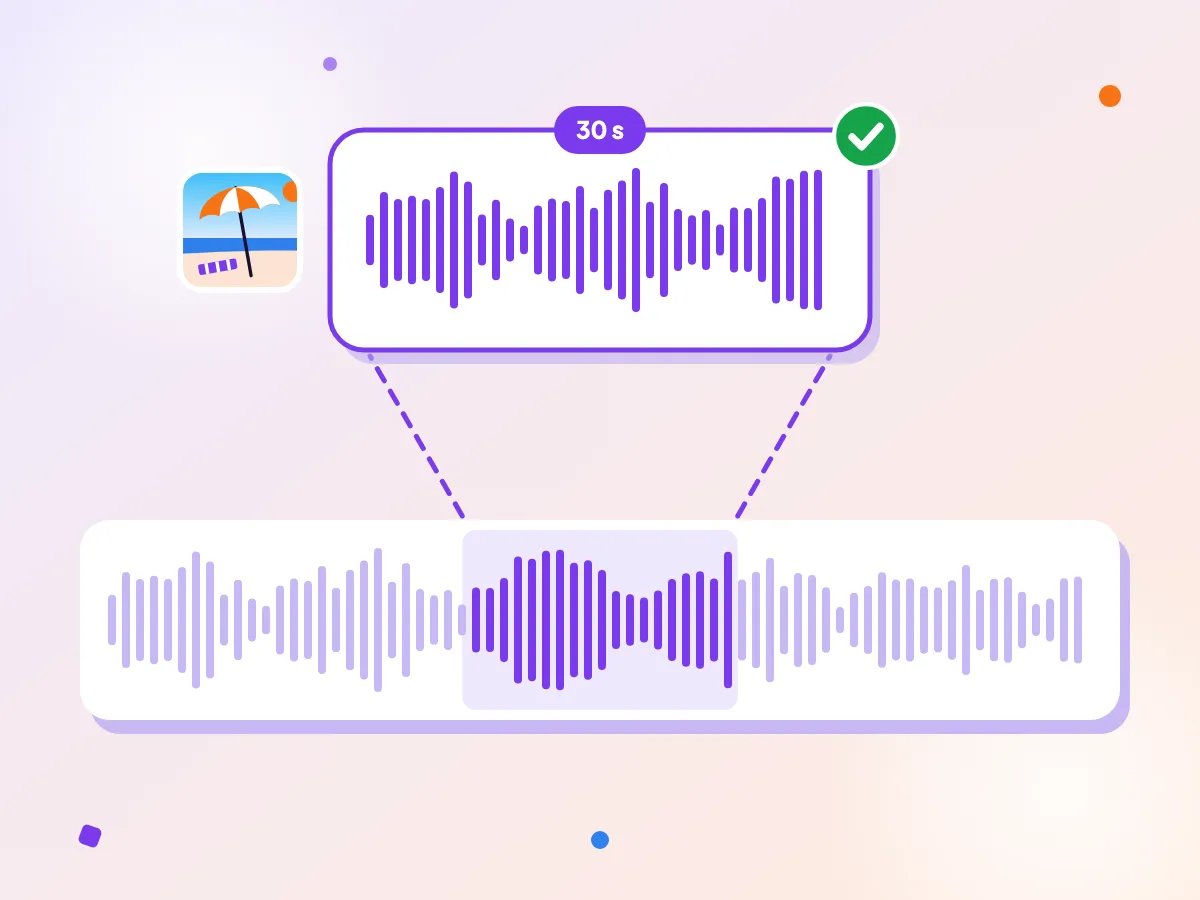
The sound of the sea, cut short
Waves and wind from a long beach recording, cut down to 30 seconds for a slideshow, an intro or an alarm. The MP3 plays on almost anything. Got an M4A or a WAV you'd rather keep in its own format? The audio cutter does that.
How it works
Open your audio
Pick an MP3, M4A, WAV, OGG or FLAC file, or drop it onto the box.
Drag the handles
Move the two handles on the waveform, or type exact times, then press Play to check.
Save the part
Choose 128 or 192 kbps, add a fade if you like, and download your MP3.
Finding the exact spot
When your file opens, its sound is drawn as a waveform: tall bars are loud, flat stretches are quiet. Speech shows up as clumps with gaps between sentences, music as a steadier band, so the place you want is usually easy to see. On a long file the waveform fills in from the left as it reads, and the handles work straight away.
Drag the start and end handles to roughly the right place, then fine-tune. With a handle selected, the arrow keys move it a tenth of a second, and Shift with an arrow moves it a whole second. For a precise cut, type into the Start time and End time fields: 1:05.5 means one minute and five and a half seconds, and plain seconds such as 65.5 work too. Press Enter or move to the next field to apply.
Press Play to hear just the part you've chosen, fades included. It stops at the end of the part and goes back to its start, so you can nudge a handle and listen again until the cut sits right. If your browser can't add the fades to the preview, a note says they're still in the saved file.
Fades for clean starts and ends
A cut that lands in the middle of a word or a beat can start or stop with a click. A fade fixes that. Fade in brings the sound up from silence at the start of the part, and Fade out takes it down to silence at the end.
Each fade can be up to 5 seconds, set in half-second steps, and never longer than half the part. If you shorten the part, a fade that no longer fits is cut down to match. A part under a second is too short for fades, and the page tells you so.
Half a second to a second is usually enough for speech. Songs tend to sound better with a longer fade out, around 3 to 5 seconds, so the ending feels intended rather than chopped off.
Short clips for alarms, intros and notifications
Short clips are where a cutter earns its keep: the chorus of a song to wake up to, a few seconds of music to open a podcast, or a little sound for a notification. Pick the part, save it, and use it anywhere your phone or app lets you choose a sound file.
The shortest part you can save is half a second. MP3 is the safe format for these small files, because nearly every phone, computer and app can play it. At 128 kbps, a 30-second clip comes to about 490 KB.
The new file is named after the old one with "-cut" added, so song.mp3 comes back as song-cut.mp3. Your original file is left exactly as it was.
Questions
Do you upload my MP3?
No. Your song or recording is opened and cut by your browser, right here on your device, and the new MP3 is downloaded from there. It isn't sent anywhere, and there's no sign-up.
Does it work on iPhone?
Yes, in Safari on an up-to-date iPhone, with files up to 1 GB. Older versions of Safari can't decode audio in the browser; if yours is one of them, the page says so before you start.
Does cutting an MP3 lower its quality?
A little. The tool decodes the part and saves it as a new MP3, which is what lets it cut at any tenth of a second and add fades. The new file can come close to the original but never beat it. At 192 kbps, the default, the difference is hard to hear in most recordings.
Which files can I open?
MP3, M4A, AAC, WAV, OGG, Opus and FLAC files, as long as your browser can read the sound inside. Files can be up to 2 GB on a computer. Whatever you open is saved as an MP3, unless you switch the format to M4A or WAV first.
Can I cut the sound of a video?
Not on this page, which opens audio files only. Use Video to MP3 instead: choose a part there and you get the same waveform, handles and fades, with the video's sound saved as an MP3.
How long can the part be?
Up to 60 minutes for an MP3 or an M4A, and up to 10 minutes for a WAV. A file longer than an hour opens with its first hour picked, and you can move the part anywhere in it.
More free tools
Trim any audio file
Cut the start and end off a recording and keep its format: an M4A stays M4A, a WAV stays WAV. It runs in your browser.
Convert a video to MP3
MP4 to MP3, in your browser: pick an MP4, MOV or WebM video and save its sound as an MP3, the whole thing or just a part. Your video stays on your device.
Turn your video into a GIF
Trim a moment, pick a size and make a GIF. It runs in your browser, so your video stays on your device.