Resize and shrink your video in one go
Pick a shape and a size limit, and one export does both jobs. Nothing is sent anywhere: the work happens in this browser tab, so your video stays on your device.
or drop it here
Up to 720p · no watermark
Editing on your phone?
The ClipSizer app for Android is on its way.
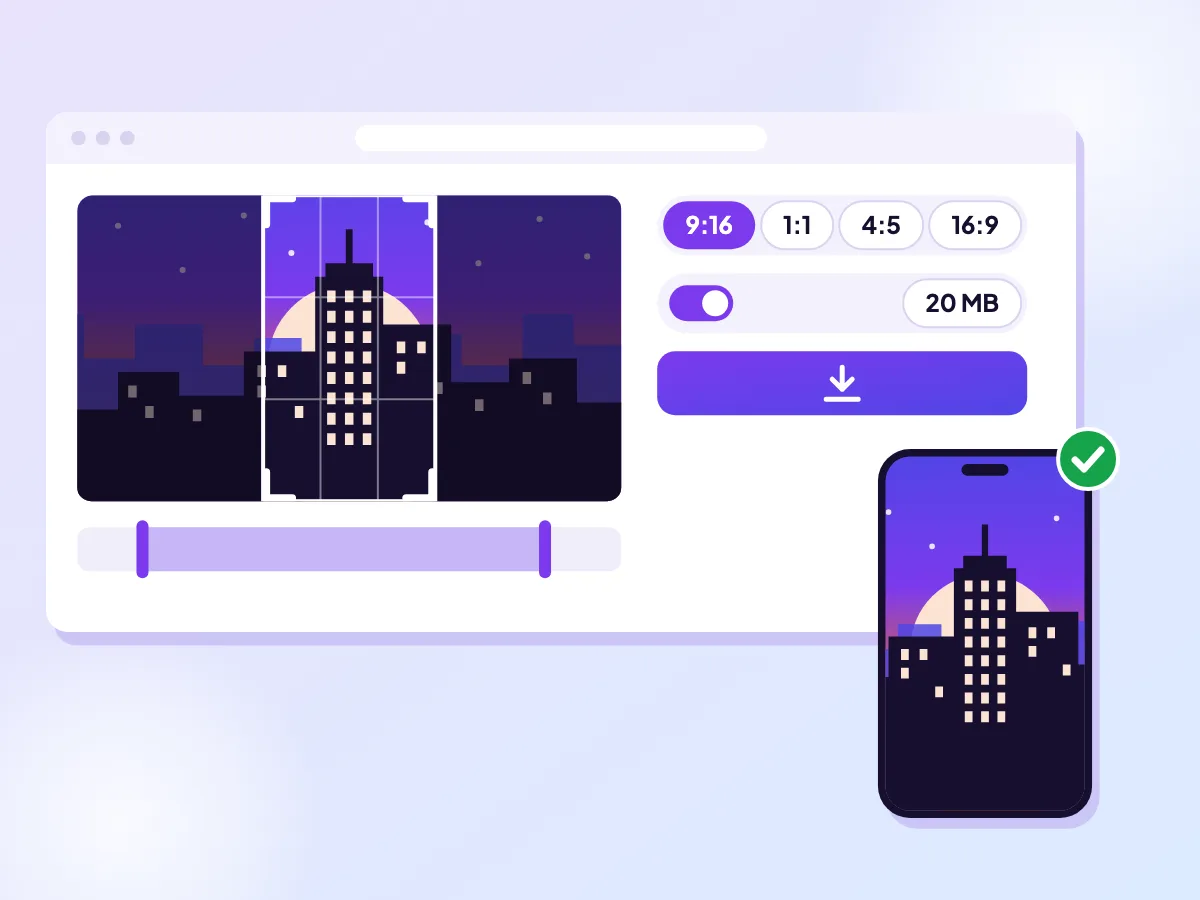
One export, shape and size
Choose the shape first, then set a limit: Discord at 20 MB, Email at 25 MB or your own number. One export gives you a reframed file that also fits the limit, so there is no second pass. It all runs in your browser. Only need the size? Use the compress tool.
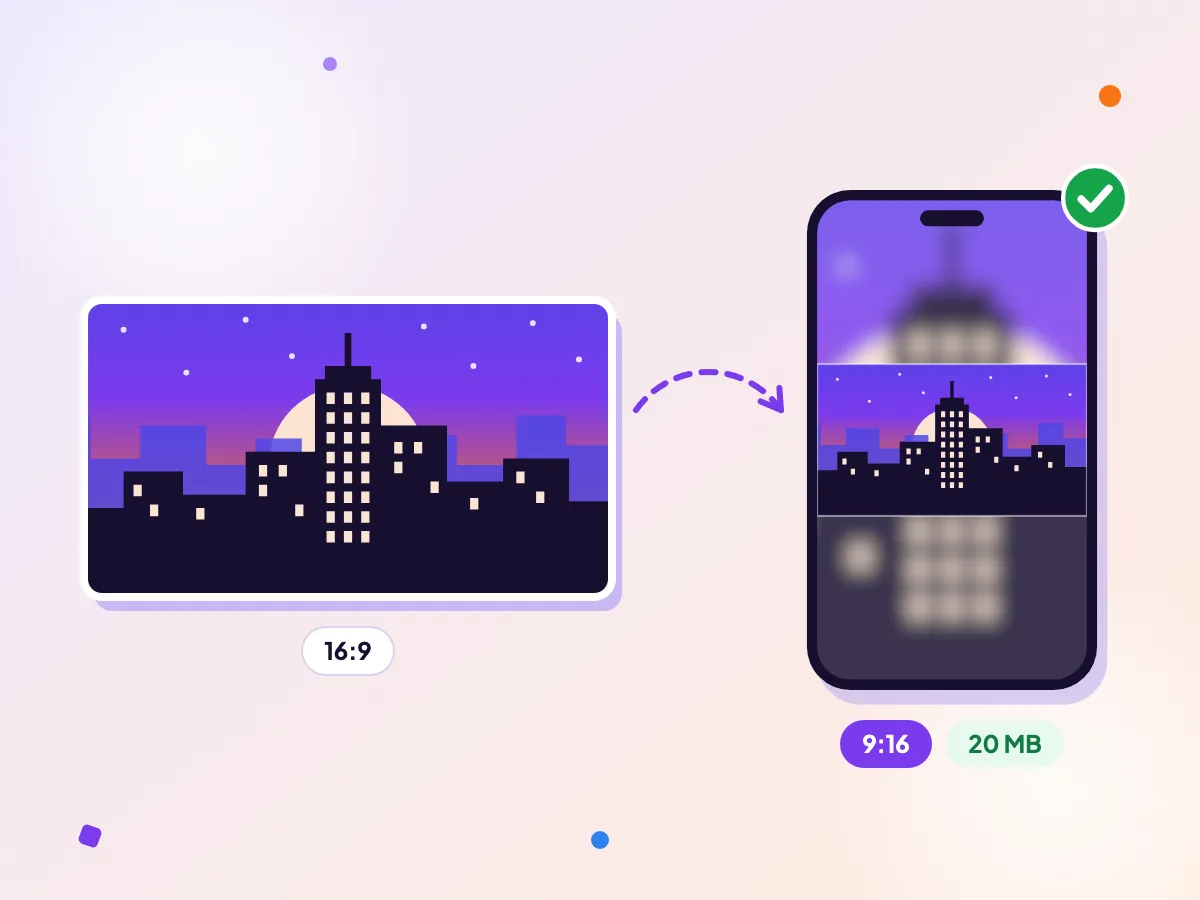
A city clip, tall and under the limit
A night-time city walk, filmed wide and far too heavy, comes out vertical and small enough to send. The tool tells you if the limit cannot be met. The export is 720p at most with no watermark. Check the Discord limit.
How it works
Add your clip
Choose a video from your phone or computer. Wide, square and tall clips all make a fine starting point.
Set the shape and the limit
TikTok's 9:16 frame and the Discord (20 MB) limit are picked for you. Switch to Email (25 MB), type your own size, or choose another shape.
Export once
You get a single MP4 in the new shape that fits under your limit. Up to 720p, no watermark.
Why one export beats two
Every time a video is encoded, a little detail is thrown away. Resizing in one tool and then compressing the result in another means your picture goes through that loss twice. Here it is encoded once, straight from your original, at the shape, size and bitrate the limit allows. It is also quicker, since you only wait for one export.
Before anything starts, we estimate the normal 720p export for your shape and trimmed length. If that already fits, you get the normal export and a note that says it fits. If not, we work out how much bitrate the limit leaves once the sound has its share. When that is too thin for 720p, the picture steps down to 540p, 480p or 360p, which stays clean where a bigger frame would turn blocky. You see the plan, with its resolution, bitrate and expected size, before you press Export.
Once the file is made, we check its real size. If the encoder overshot, it is redone at a lower bitrate, up to three passes in all, so the file you download is under the limit you picked.
Getting more picture out of a small limit
Length is what uses up a limit. Each second of video gets a slice of the budget, so a clip half as long gets twice the bitrate per second. Trim away the slow start and the ending first; the plan updates as you move the trim handles, so you can watch the resolution climb back toward 720p.
Sound takes its share too. If the audio does not matter, for example a screen recording or a clip you will put music over later, turn on Mute and that share goes to the picture instead.
A busy picture needs more bitrate than a calm one. Fit with plain bars, or a tight Fill crop, usually holds up better at a small size than Blur, whose soft moving background still has to be encoded.
Discord, email and your own number
Free Discord accounts can attach files up to 20 MB, which is the Discord preset. With Nitro Basic the limit is 50 MB, so choose Custom and type 50. Email (25 MB) matches the attachment limit in Gmail, which sends anything bigger as a Google Drive link instead. Other email providers can be stricter, so if a message bounces, try a smaller Custom size.
Custom takes any size from 0.1 to 500 MB. A megabyte here is 1,000,000 bytes, so a 20 MB limit means the file will be at most 20,000,000 bytes.
See Discord's current video specs →
Questions
Is my video uploaded while it is resized and compressed?
No. Both jobs run in this browser tab on your own device. The file only goes anywhere when you attach it or post it yourself.
Can I do this on an iPhone?
Yes, in Safari on a recent iPhone. Resizing and compressing together is still a single export, but a long or 4K clip can be more than a phone browser can hold. If it stops, trim the clip first or switch to a computer.
What if my video already fits the limit?
Then nothing gets squeezed. You get the normal 720p export in the new shape, and the tool tells you it fits. The finished file is still checked against the limit.
Why did the picture drop below 720p?
The limit is small for the length of the clip. Below a certain bitrate a 720p picture breaks up into blocks, so a smaller frame looks cleaner. Trim the clip, mute it, or raise the limit to get 720p back.
What if the clip is far too long for the limit?
You get a message before anything is encoded, with a button that keeps only the first part that fits. You can also pick a bigger limit instead.
More free tools
Get your video under the Discord limit
Free Discord accounts can attach files up to 20 MB. Drop your clip in and we squeeze it just under that, right in your browser.
Resize your video for TikTok
Turn any clip into a full-screen vertical TikTok. It runs in your browser, so your video stays on your device.
Resize one video for every platform
Frame your clip once and get it in all four common shapes, packed into one zip. Everything runs in your browser, so your video stays on your device.