Resize one video for every platform
Frame your clip once and get it in all four common shapes, packed into one zip. Everything runs in your browser, so your video stays on your device.
or drop it here
Up to 720p · no watermark
Editing on your phone?
The ClipSizer app for Android is on its way.
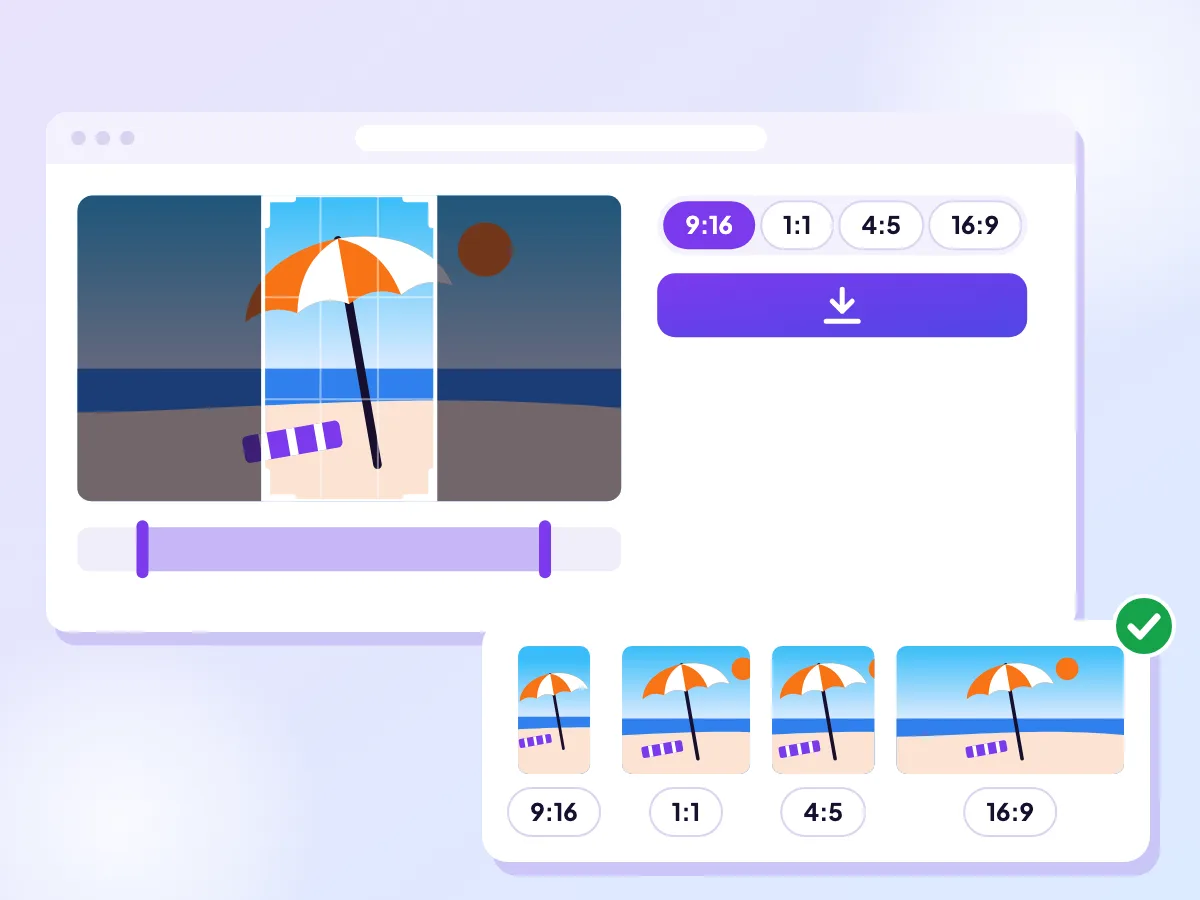
Four shapes from one clip
Frame your clip once, then use the All 4 sizes option. You get 9:16, 1:1, 4:5 and 16:9 versions packed together in one zip, each with the same Fit, Fill or Blur background choice. No need to repeat the work. For a single shape, open the main resize tool.
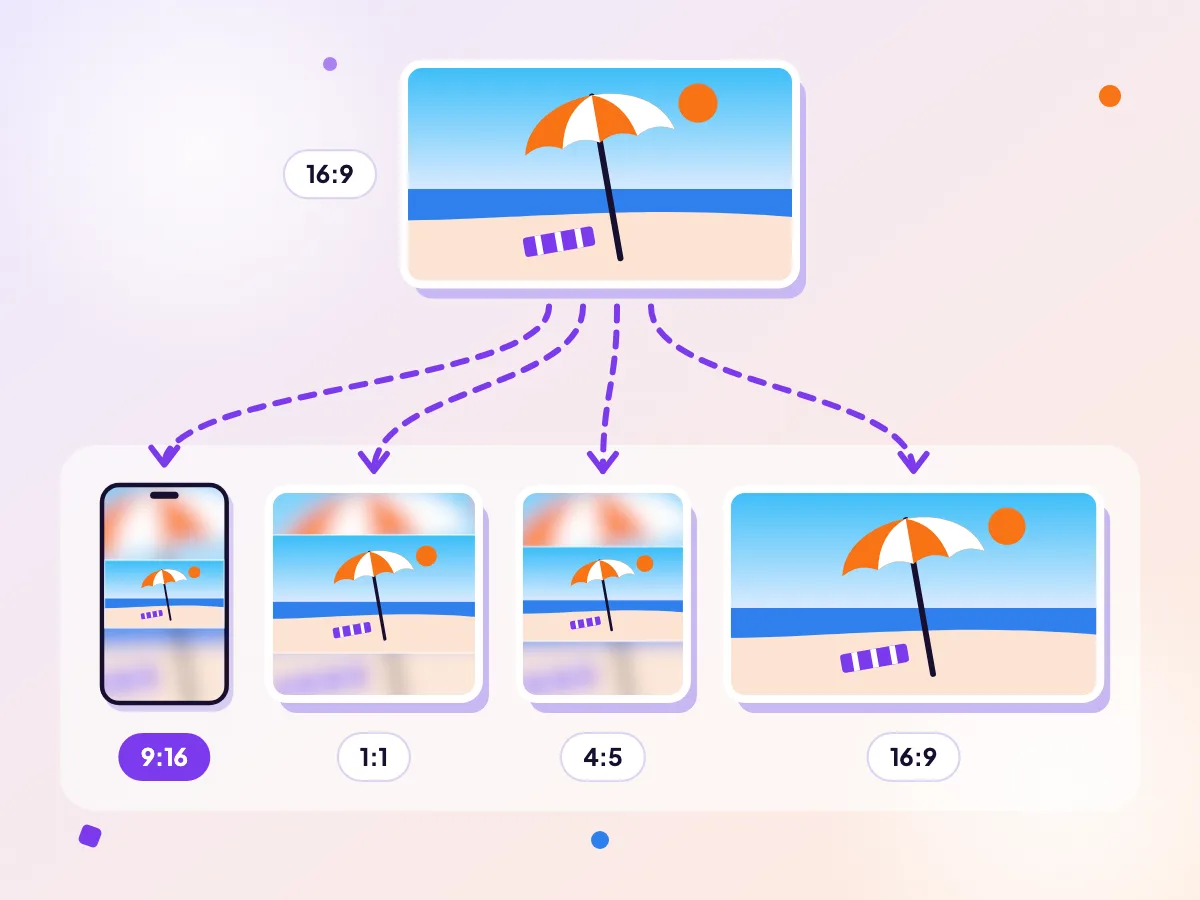
One beach clip, every shape you need
A single beach video leaves as four files: tall for stories, square for chats, 4:5 for the feed and wide for YouTube. Each is 720p at most with no watermark. Four exports can take longer than one. Compare the Instagram sizes.
How it works
Choose the clip
Pick the video you want to post everywhere. All four sizes work for clips up to 5 minutes long.
Frame it once
Set Fit, Fill or Blur, zoom and drag in the preview, and trim the ends. Each size starts from this framing and fits it to its own shape.
Save the zip
Press All 4 sizes (.zip) and download one file holding a 9:16, 1:1, 4:5 and 16:9 MP4. Up to 720p, no watermark.
Which file goes where
The zip holds four MP4 files named after your clip. The one ending in 9x16 is the tall version for TikTok, Instagram Reels and YouTube Shorts. The 4x5 file is for posts in the Instagram feed, where a taller frame takes up more of the screen than a square. The 1x1 file suits square posts, chats and websites. The 16x9 file is the wide one, for YouTube and anything people watch on a computer or a TV.
Each file is 720 pixels on its short side: 720 × 1280, 720 × 720, 720 × 900 and 1280 × 720. For what each app asks for in its own words, and its limits on length and file size, check the specs pages before you post.
Framing one clip for four shapes
Each size in the zip starts from the framing you set, then fits it to its own shape. Your zoom and drag position stay where that shape has room for them. Where a position would leave an empty strip at the edge of a Fill crop, it is pulled back just enough for that shape. A subject near the middle survives every crop best. Fill cuts the most from the wide version of a tall clip, and from the tall version of a wide one.
If the subject sits near one side, Blur is the safer choice for a batch: every version keeps the whole picture, and a soft copy of the video fills the space each shape leaves. Fit does the same with plain black bars, which suits text, slides and screen recordings.
Frame the video in the shape that matters most to you, and do it last, just before you press All 4 sizes. Switching Shape fits the framing to the new shape, so a shape with no room to move, such as 16:9 with Fill on a wide clip, pulls it back to the centre. If you look at other shapes first, come back to your main one and set the framing again.
Time, size limits and memory
The four videos are made one after another, so it takes up to four times as long as a single export. The progress bar shows which one it is on, for example Size 2 of 4 (1:1). Cancel stops the whole batch: no zip is saved and the remaining sizes never start.
A size limit applies to each video on its own. Choose Discord (20 MB) and every file in the zip comes out under 20 MB, though the zip itself is bigger. Each shape gets its own plan, so a square version may keep 720p where the tall one has to step down.
Every finished video waits in your browser until the zip is saved, which is why all sizes stops at 5 minutes. For a longer clip, trim it, or make one shape at a time with Export video. The zip adds no extra compression, because MP4 files are already compressed.
See Instagram's current video specs →
Questions
Do the four videos get uploaded anywhere?
No. All four are made in this tab on your device and packed into the zip right here. Nothing leaves your device until you post one of the files yourself.
Will this work on my iPhone?
Yes, in Safari on a recent iPhone. Four exports need more memory than one, so a long or 4K clip may be too much for a phone browser. Trim it, make one size at a time, or use a computer instead.
How do I open the zip on a phone?
On an iPhone, save it to the Files app and tap it to unpack the four videos. On Android, file manager apps such as Files by Google have an Extract option.
Can I get just one of the sizes?
Yes. Pick that shape and press Export video to save only that file. Or keep the zip and delete the versions you do not need.
Why is All 4 sizes turned off?
The clip, after trimming, is longer than 5 minutes. Trim it to 5 minutes or less, or export the shapes one at a time.
More free tools
Resize your video for any app
Pick where it is going and we reframe it to fit. It runs in your browser, so your video stays on your device.
Resize and shrink your video in one go
Pick a shape and a size limit, and one export does both jobs. Nothing is sent anywhere: the work happens in this browser tab, so your video stays on your device.
Make your video square
Crop your clip to a 1:1 square, or keep the whole shot on a blurred background. It runs in your browser, so your video stays on your device.