Turn your wide video vertical
Reframe a wide 16:9 clip as a tall 9:16 video, without squashing anything. It runs in your browser, so your video stays on your device.
or drop it here
Up to 720p · no watermark
Editing on your phone?
The ClipSizer app for Android is on its way.
Rotate the idea, not the video
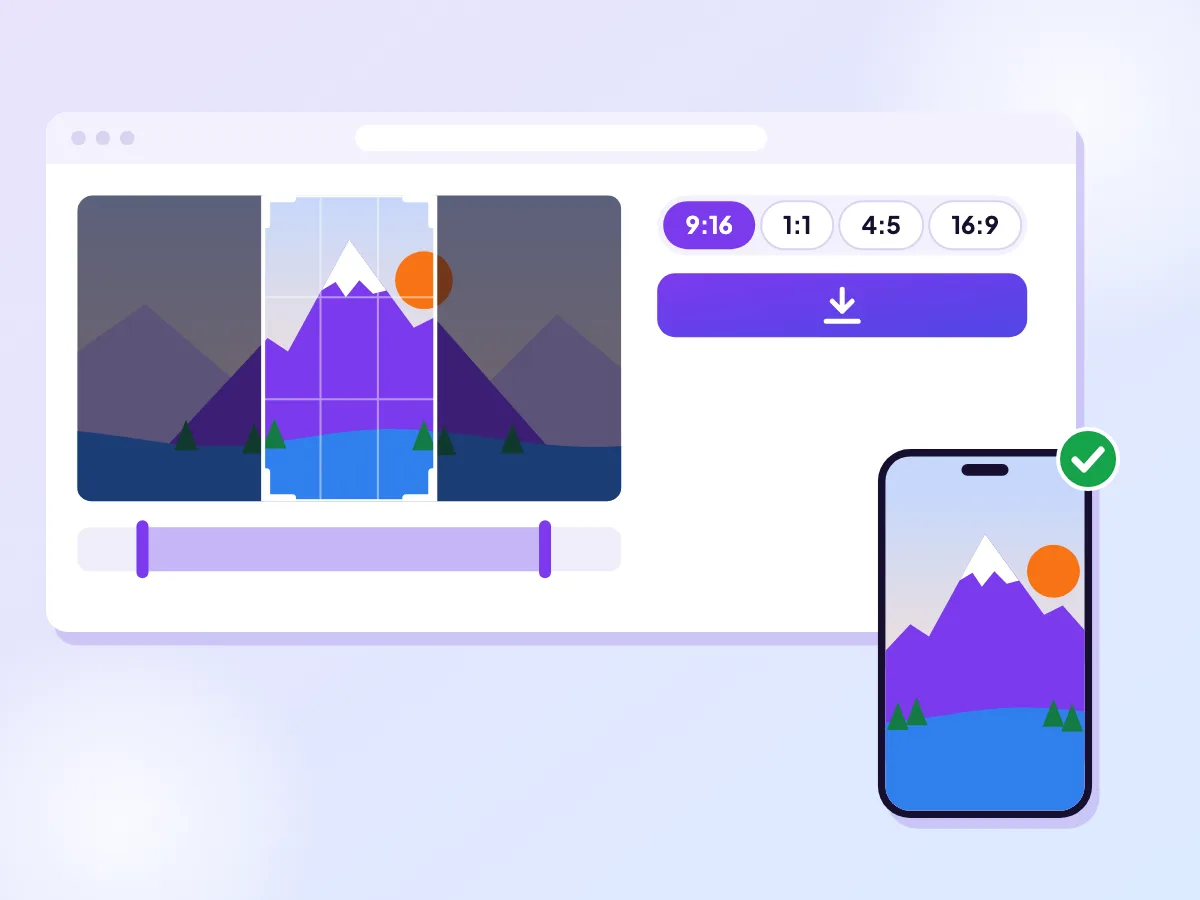
Landscape footage and a vertical screen do not match, so you choose how to bridge them. Fit shows the whole frame, Fill crops to the middle, and Blur background fills the top and bottom with a soft copy. Trim before saving. Going to a feed? See the TikTok shape.
A mountain view, turned on its end
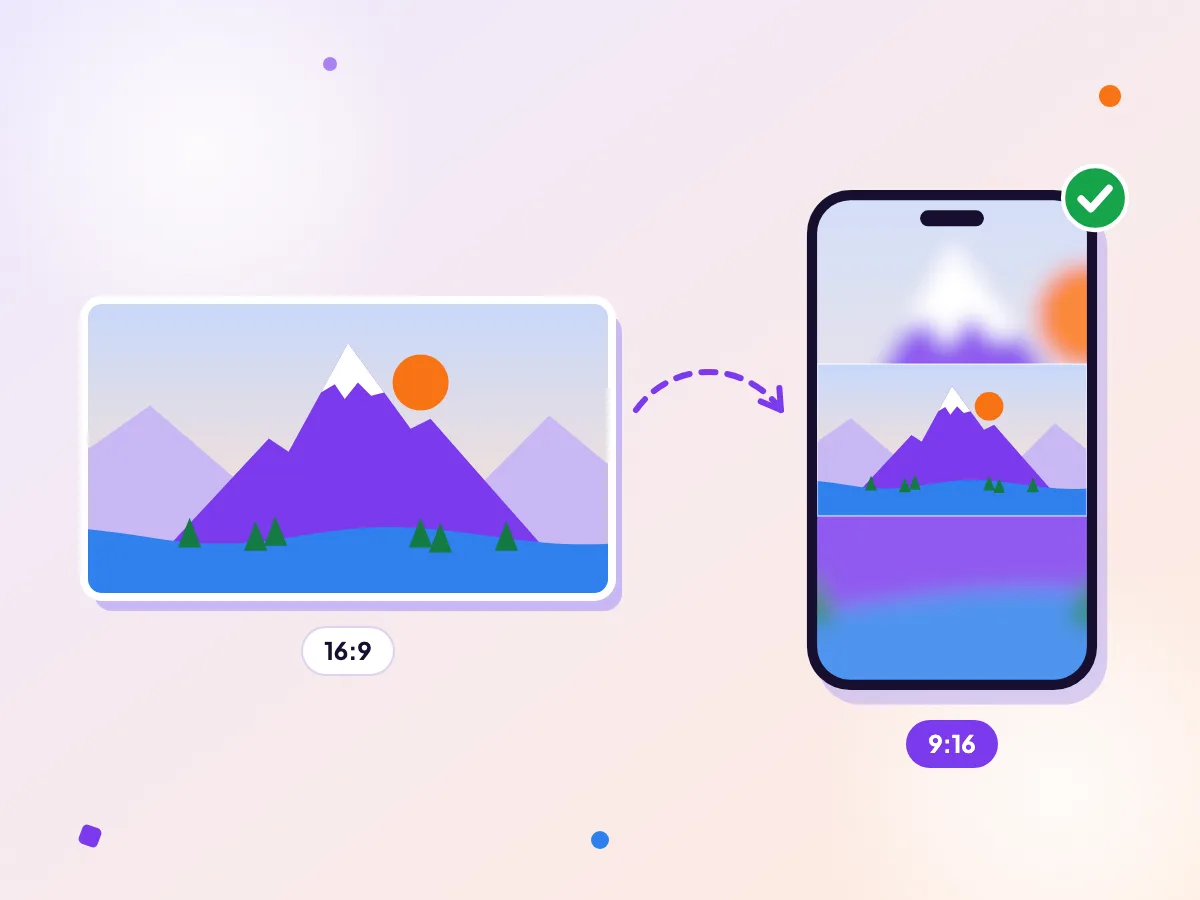
A wide mountain panorama becomes a tall 9:16 video, with the peak kept in frame and the sky filling the rest. The picture is never stretched, and the export is 720p at most. Read the TikTok specs or go square.
How it works
Choose your wide video
Any landscape clip works: a camera video, a screen recording or a phone video filmed sideways.
Pick how to fill the frame
Fill crops to the tall frame, and you drag to keep the action in view. Blur keeps the whole picture, with a blurred copy above and below.
Save the vertical video
Download it, ready for TikTok, Reels or Shorts. Up to 720p, no watermark.
Wide vs vertical on TikTok (from TikTok's ad specs)
| Vertical (preferred) | 9:16, at least 540 × 960 |
|---|---|
| Wide | 16:9, at least 960 × 540 |
Source: official help page, checked Oct 2026
Choosing Fill or Blur for landscape footage
A 16:9 frame is far wider than a 9:16 frame, so something has to give. Fill keeps the picture large and sharp by cropping away most of the left and right sides. That works when one person or object carries the shot, and it fails when the interesting parts are spread across the width.
Blur background keeps the entire landscape picture in the middle of the tall frame and fills the space above and below with a soft copy of itself. It shows everything but makes the main picture smaller, so small text and fine detail get harder to read.
A simple rule: if you would be annoyed to lose the edges, choose Blur. If the subject is centred and you want it big, choose Fill.
Footage from a drone, action camera or screen recorder is usually wide by default, which makes it a natural fit for this tool. Decide up front which part of the shot matters most, then frame around that part instead of fighting the whole picture.
Getting the best crop with Fill
With Fill, the preview is draggable. Slide it until the face, product or action sits in the middle of the tall frame, then play a few seconds to check the subject does not wander out of view. If it does, trim the clip to the part where it stays put.
Screen recordings and slides rarely survive Fill, since the edges hold the text. Use Fit or Blur for those instead. For what each app expects from vertical video, see our TikTok and YouTube Shorts specs pages.
If the result is almost right, nudge the preview a little and export again. Small shifts in the crop often make the biggest difference to how natural the clip feels.
When it is better to leave a video wide
Not every clip needs to go vertical. If the video is meant for a computer screen, a tutorial, a presentation or a long recording, keep it at 16:9 and only reframe a short highlight for the vertical apps.
A good habit is to keep your original and export a vertical copy for each destination. That way you can re-crop later without losing quality from repeated edits.
See TikTok's current video specs →
Questions
Do you upload my video?
No. The conversion runs in your browser on your own device, so your wide video is never sent anywhere.
Does it work on iPhone?
Yes. Safari on a recent iPhone can convert a wide clip to vertical. Very long or 4K footage may exceed what the browser on a phone can handle, so shorten it or use a computer for the big ones.
Will my video look stretched?
No. It keeps its proportions. Fill crops the sides to fill the tall frame; Fit and Blur keep everything and fill the space above and below.
Can I choose which part stays in?
Yes. With Fill, drag the preview left or right to keep the important part in the frame, and zoom in if you like.
Is this the same as rotating it?
No. Rotating would turn the picture on its side. This keeps it upright and reframes it for a tall screen.
Is Blur or Fill better for a landscape video?
Fill is better when one subject carries the shot. Blur is better when the important parts are spread across the width, or when the frame has small text.
More free tools
Resize your video for TikTok
Turn any clip into a full-screen vertical TikTok. It runs in your browser, so your video stays on your device.
Resize your video for YouTube Shorts
Shorts are vertical. We reframe your clip to 9:16 so it fills the phone screen, and your video stays on your device.
Make your video square
Crop your clip to a 1:1 square, or keep the whole shot on a blurred background. It runs in your browser, so your video stays on your device.